
How to Make a Photo Dance with AI: Complete Guide (2026)
Turn any portrait into an AI dance video. Step-by-step tutorial with real examples (old photos, baby photos, pet photos), troubleshooting tips, and before/after results.
 Animaker Dev Team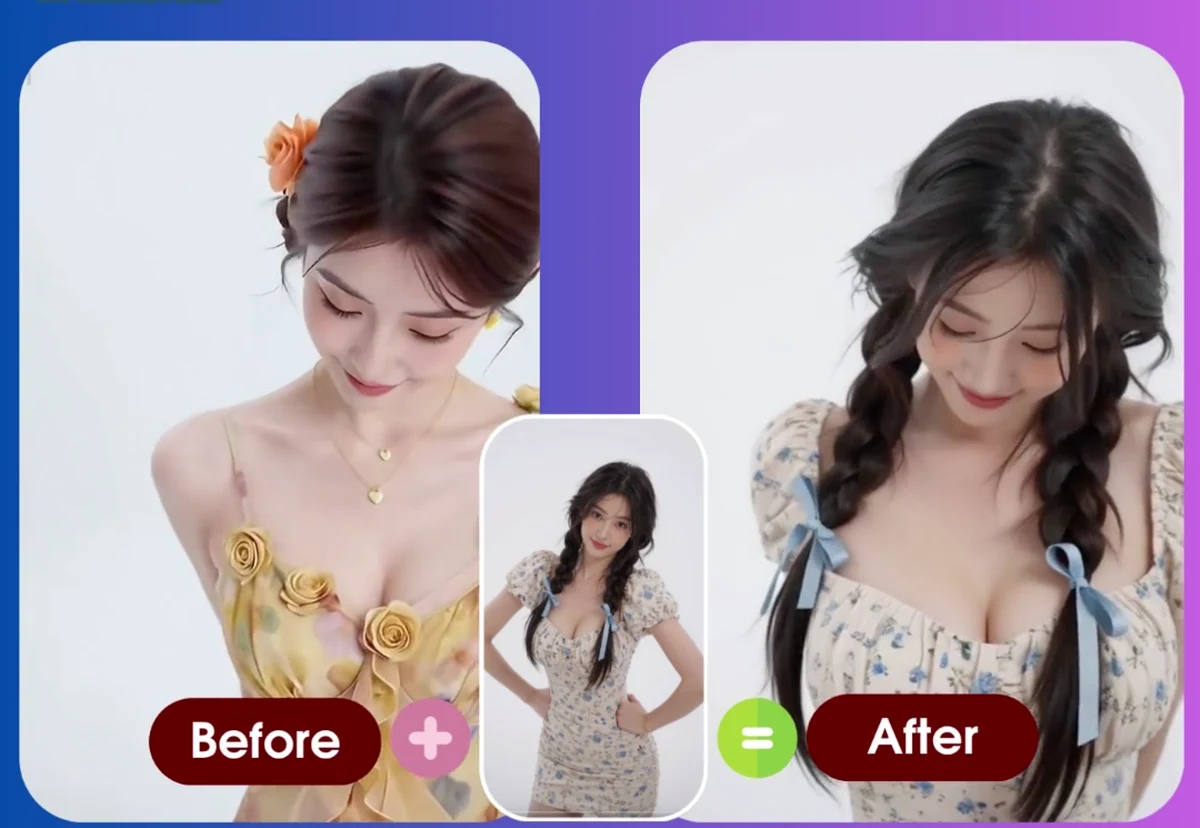
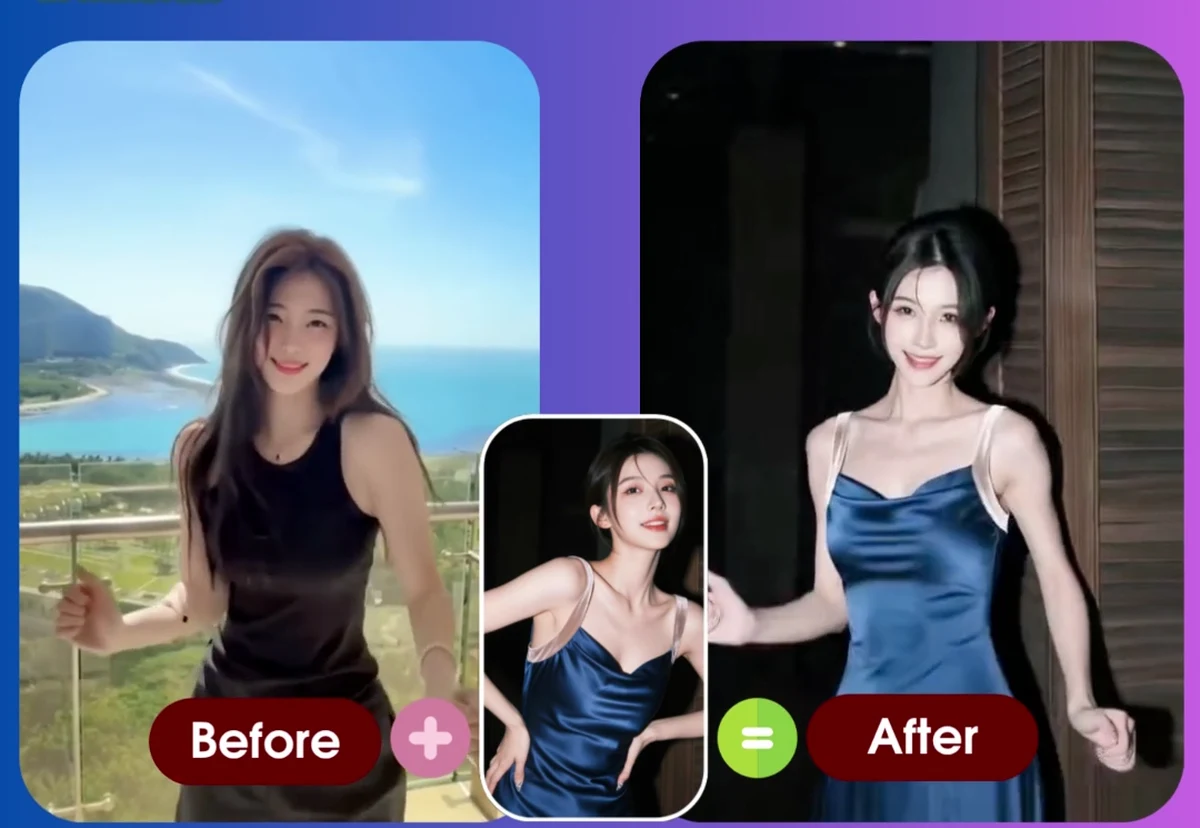
You can make a photo dance with AI by uploading two inputs: a clear portrait photo and a reference action video. The photo provides the subject—the person (or pet) whose face and body you want to preserve.
The reference video provides the movement—the dance steps, rhythm, gestures, and poses you want to recreate. AI motion transfer then maps the reference action onto the subject from the photo, producing a new video where your static portrait comes alive.
This workflow is different from text-to-video AI. Instead of describing a dance in words and hoping the model interprets it correctly, you show the AI the exact motion you want by uploading a real video clip. That makes the result more controllable, especially when you need specific choreography, timing, or body language for short-form social content.
Animaker is built for this photo-plus-reference workflow. You upload both files, start generation, and download the finished MP4 when the task completes. Most generations take 10-15 minutes. Failed tasks automatically refund the credit so you can retry with better inputs.
This guide covers the complete workflow—from choosing the right photo to fixing common failures—with real examples showing how to make old family photos dance, baby photos dance, and even pet photos dance.
Why Make a Photo Dance with AI?
AI dance videos let you create motion content without a camera, actors, or choreography skills. The workflow is especially useful for:
- Old family photos — bring grandparents' vintage portraits to life with modern dance moves
- Baby photos — create adorable dance clips from nursery pictures (popular on TikTok/Reels)
- Pet photos — make your dog or cat "dance" for viral social content
- Memorial tributes — animate photos of loved ones for celebration videos
- Social media hooks — test creative concepts fast before shooting real footage
- Product demos — add movement to static product shots or brand mascots
- Creator profiles — make your static headshot more engaging
- Client previews — show motion concepts without booking a full production
Because the reference video controls the exact motion, you can test dozens of dance ideas with the same portrait photo—perfect for rapid creative iteration.
Real Example 1: Making an Old Photo Dance
The Challenge: A black-and-white family photo from the 1960s. Grandpa is standing in a suit, hands at his sides, formal pose. The goal: make him dance to a modern pop song for a family reunion video.
Photo Selection
- ✅ Head-to-waist framing (shows torso and arms)
- ✅ Face is clear despite vintage grain
- ✅ Standing pose (matches most dance references)
- ⚠️ Hands partially in shadow (acceptable, not holding objects)
Reference Video: 15-second clip of a simple two-step dance with arm movements. One performer, stable camera, clear body language.
Result: The AI successfully mapped the dance onto Grandpa's vintage portrait. The face stayed recognizable, the body moved naturally, and the vintage photo quality was preserved. The arms followed the reference motion, though the shadowed hands were slightly softer than the upper body.
Key Lesson: Old photos work well when the subject is standing and the face is visible. Heavy grain is fine—the AI focuses on body structure and face landmarks, not perfect clarity.
→ Try making an old photo dance — specialized tips for vintage portraits.
Real Example 2: Making a Baby Photo Dance
The Challenge: A 6-month-old baby sitting on a blanket. The photo is from a phone camera, good lighting, but the baby is seated with legs hidden.
Photo Selection
- ✅ Face is clear and well-lit
- ✅ Torso visible
- ❌ Legs hidden (baby is sitting)
- ⚠️ Arms slightly blurred from baby movement
Reference Video: Short clip of a baby doing a simple seated bounce and hand clap. No leg movement required.
Result: The AI generated a cute dance video where the baby's upper body moved with the reference rhythm. Because the reference also had a seated subject, the leg limitation didn't cause problems. The face stayed adorable, and the hand claps synced well.
Key Lesson: Match the photo's body visibility to the reference video. A seated baby photo + seated reference = success. A seated baby photo + full-body dance reference = legs may look unnatural.
→ Learn how to make a baby photo dance — age-appropriate motion and cuteness tips.
Real Example 3: Making a Pet Photo Dance
The Challenge: A golden retriever sitting in the backyard. The owner wanted a "dog dancing" video for Instagram.
Photo Selection
- ✅ Dog is centered and well-lit
- ✅ Full body visible (head, torso, front legs)
- ⚠️ Fur texture is complex
- ❌ Ears are floppy (motion may look strange if reference has stiff hair)
Reference Video: Short clip of a dog doing a "play bow" and head shake. One clear subject, simple motion, no fast jumps.
Result: The AI created a playful video where the dog's head and front body moved with the reference. The fur texture held up well. The floppy ears moved naturally because the reference video also had a dog with similar ear structure.
Key Lesson: Pet photos work best when the reference video also features a similar animal (dog → dog, cat → cat). Mixing species (dog photo + human dance reference) can work for meme content but often produces unnatural results.
→ Complete guide: make a pet photo dance — animal-specific tips and viral ideas.
The Complete Workflow: Step-by-Step
Step 1: Choose the Right Portrait Photo
The portrait is your identity source. The AI uses this image to preserve the subject's face, body shape, and overall appearance while applying the motion from the reference video.
What makes a strong portrait for AI dance videos
| Factor | Good Choice | Risky Choice |
|---|---|---|
| Framing | Head-to-waist or full body | Tight face-only crop (no torso visible) |
| Clarity | Clean focus on the subject | Blurry, dark, or heavily filtered |
| Hands | Visible and empty | Hidden behind back or holding objects |
| Pose | Standing or sitting naturally | Twisted, jumping, or in motion |
| Face | Clear features, good lighting | Covered by hair, glasses, or shadows |
| Background | Simple, not crowded | Multiple people or busy scene |
| Body | Enough visible for target motion | Too cropped for the reference video's scope |
Pro tip: If your reference video shows full-body dancing, start with a photo that shows at least torso and arms. If the reference is upper-body only (like a hand wave or head nod), a head-and-shoulders portrait is fine.
Step 2: Pick a Strong Reference Action Video
The reference video is your motion blueprint. It controls the dance steps, rhythm, gestures, body language, and timing. The clearer the reference, the better the AI can recreate it.
What makes a strong reference video
- One main performer — avoid clips with multiple dancers unless they move in unison
- Stable camera — no shaky handheld footage or fast pans
- Clear body — arms, hands, torso, and legs are visible (not hidden by props or clothing)
- Simple motion — smooth, repeatable movement (not chaotic flailing)
- Good lighting — the reference subject is well-lit
- No fast cuts — the clip shows one continuous action, not a montage
- No heavy motion blur — the action is readable frame-by-frame
Video length: Most AI dance tools accept 5-60 second clips. Shorter is often better for first attempts—5-15 seconds of clear, simple motion is easier for the AI to process than a long, complex routine.
Where to find reference videos
- TikTok/Instagram Reels (download and trim to key motion)
- YouTube dance tutorials (pick short, clear segments)
- Your own recordings (film yourself or a friend doing the target motion)
- Stock video sites (search "dance loop" or "gesture clip")
Step 3: Match Photo and Reference
The best results happen when your portrait and reference video are compatible. A close-up selfie paired with a full-body breakdance reference creates a large gap—the AI has to invent body parts that aren't visible in the photo. A standing portrait paired with a standing dance reference is much easier.
Pre-generation checklist
| Check | Aligned Inputs | Mismatched Inputs |
|---|---|---|
| Body framing | Photo shows the body parts the reference uses | Photo is cropped, reference needs full body |
| Pose direction | Subject faces similar angle as reference | Subject facing away, reference facing forward |
| Hand position | Hands visible and empty | Hands hidden or holding objects |
| Subject type | Both human, or both animal | Human photo + animal reference (or vice versa) |
| Complexity | Simple, readable motion | Reference has fast spins, flips, or tricks |
Example mismatch: You have a face-only selfie and want to use a full-body hip-hop dance reference. The AI can't see your legs, torso, or arms in the photo, so it has to guess body proportions. Result: often unnatural lower body motion.
Example match: You have a head-to-waist photo of someone standing with arms at their sides. You choose a reference video of a person doing a simple arm dance (upper body movement, no leg work). The AI has all the visual information it needs. Result: smooth, natural output.
Step 4: Generate the Dance Video
- Open Animaker's AI Dance Generator
- Upload your portrait photo
- Upload your reference action video
- Click "Generate"
- Wait 10-15 minutes (task runs in the background)
- Check your dashboard for the completed MP4
What happens during generation
- The AI analyzes the portrait to extract face landmarks and body structure
- It processes the reference video to map motion keyframes
- It transfers the reference motion onto the portrait subject
- It renders the final video, preserving face identity while applying the new movement
If generation fails: Animaker automatically refunds the credit so you can try again. Check the failure tips below to improve your inputs.
Why AI Dance Videos Fail (and How to Fix Them)
Most failures come from one of five input problems. The good news: each has a clear fix.
Failure 1: Twisted or Glitchy Arms/Hands
Symptoms: Arms bend at impossible angles, hands look blurred or duplicated, fingers are mangled.
Likely cause: Hands are hidden in the photo, holding objects in the reference, or moving too fast.
Fix
- Use a photo where both hands are visible and empty
- Choose a reference video with clear, slow hand movements
- Avoid references where hands hold props (phones, bottles, etc.)
Real example: User uploaded a photo where one hand was in a pocket. Reference video had both arms raised. Result: The visible arm worked perfectly, but the hidden arm produced unnatural motion. Fix: Retried with a photo showing both hands. Success.
Failure 2: Weak or Missing Body Motion
Symptoms: The dance looks stiff, legs don't move, or lower body stays frozen while upper body dances.
Likely cause: The portrait is too tightly cropped (face-only or head-and-shoulders) but the reference shows full-body movement.
Fix
- Use a head-to-waist or full-body photo if the reference includes leg work
- OR switch to a reference video that only uses upper body motion
Real example: Baby photo cropped to face + shoulders, paired with a full-body dance reference. Result: Head and shoulders moved naturally, but the AI couldn't generate convincing legs because they weren't visible in the photo. Fix: Used a seated baby reference with no leg movement. Success.
Failure 3: Face Doesn't Look Like the Original
Symptoms: The face in the output video looks like a stranger, or face details are blurry/wrong.
Likely cause: Portrait photo is low resolution, heavily filtered, or face is partially obscured.
Fix
- Use a higher-resolution photo (at least 512px on the shortest side)
- Avoid heavy Instagram filters that change face structure
- Make sure face is well-lit and not covered by hair, glasses, or shadows
Real example: Vintage 1950s photo with heavy grain and dark shadows on the face. Result: Face identity drifted slightly. Fix: Applied light contrast adjustment to the scan before uploading, making face landmarks clearer. Retry succeeded.
Failure 4: Unnatural Posture or "Floating" Effect
Symptoms: The subject looks like they're sliding, tilting, or standing at a weird angle.
Likely cause: The starting pose in the photo conflicts with the starting pose in the reference video.
Fix
- Choose a photo where the subject's stance is similar to the reference video's starting position
- If your photo shows someone sitting, use a reference where the performer is also seated
- Avoid mixing standing photos with seated references (or vice versa)
Real example: Photo of person leaning casually against a wall + reference of someone standing upright. Result: Posture looked awkward throughout. Fix: Chose a reference where the performer also had a relaxed, leaning pose. Output looked natural.
Failure 5: Generation Crashes or Times Out
Symptoms: Task fails with an error message, or gets stuck "processing" for 30+ minutes.
Likely cause: Reference video is too long, too complex (fast cuts, multiple people), or in an unsupported format.
Fix
- Trim reference video to 5-15 seconds
- Re-encode reference to MP4 (H.264 codec) if it's in an unusual format
- Choose a reference with one clear subject and simple motion
Real example: User uploaded a 90-second music video with fast cuts and multiple dancers. Result: Task timed out. Fix: Trimmed to a 12-second clip showing one dancer's chorus. Success.
Advanced Tips for Better Results
Tip 1: Save Successful Input Pairs
When you find a photo + reference combination that works well, save both files. You can reuse the reference with different photos, or reuse the photo with different references. This builds a library of reliable inputs for future projects.
Tip 2: Test One Input at a Time
If a generation fails, change only the photo OR the reference—not both. This helps you identify which input caused the problem.
Tip 3: Use Shorter Clips First
A 5-second reference is easier for the AI to process than a 60-second routine. Start short, verify quality, then try longer clips.
Tip 4: Match Lighting Styles
If your photo is bright and the reference is dark (or vice versa), the output may look inconsistent. Choose inputs with similar lighting when possible.
Tip 5: Check the Reference Video Yourself
Before generating, watch the reference and ask: "Can I clearly see and describe every movement?" If you struggle to follow the action, the AI will too.
AI Dance Videos vs Other AI Video Methods
| Method | Best For | Main Limitation |
|---|---|---|
| Text-to-video | Inventing new scenes from prompts | Motion is vague, hard to control exact choreography |
| Image animation | Adding subtle motion to a still (parallax, breathing) | Limited to simple preset effects, not full dance |
| AI motion transfer (this method) | Recreating a specific real action from a reference video | Requires both a clear photo and a clear reference clip |
When to use AI motion transfer: You know exactly what motion you want, you have (or can find) a reference video showing that motion, and you want the output to follow the reference precisely.
When to use text-to-video instead: You want the AI to invent a whole scene, background, and motion from a written description.
FAQ
Can any photo be made to dance?
Not every photo works equally well. Best candidates: Clear portraits with visible face and body, standing or sitting naturally, hands visible. Difficult inputs: Face-only selfies, dark/blurry photos, subjects holding complex objects, crowded group shots.
Do I need a professional dance video as the reference?
No. The reference can be any action—a walk, wave, gesture, product demo, or even a simple head nod. "Dance" is just the most popular use case. The key is clear, readable movement.
How long does generation take?
Most tasks finish in 10-15 minutes. Complex references or high-resolution inputs may take slightly longer.
What if my generation fails?
Animaker automatically refunds the credit when a task fails, so you can retry with improved inputs. Check the failure troubleshooting section above to identify the likely cause.
Can I use old black-and-white photos?
Yes! Old photos work well as long as the face and body are visible. Vintage grain is fine—the AI focuses on body structure and face landmarks, not perfect sharpness. See the "Old Photo Dance" example above.
Can I make a pet photo dance?
Yes, but use an animal reference video. A dog photo + dog dance reference works well. A dog photo + human dance reference often produces unnatural results. See the "Pet Photo Dance" example above.
What video format should I use for the reference?
MP4 (H.264 codec) is the safest choice. Most tools also accept MOV, WebM, and AVI. If your reference is in an unusual format, convert it to MP4 first.
Can I use the output video commercially?
Yes, if you have rights to both the photo and the reference video. For client work, always make sure you own or have licensed both source files.
How do I make a baby photo dance?
Use a seated reference if the baby photo shows a seated pose. Avoid full-body dance references with leg movement—babies are often photographed sitting or lying down, so leg-heavy references won't work well. See the "Baby Photo Dance" example above.
Does the reference video need music?
No. The AI only uses the visual motion from the reference video. You can add music to the final MP4 in a video editor after downloading.
Can I combine multiple reference videos?
Most AI dance tools process one reference at a time. To create a longer dance video, generate multiple clips (each with a different reference) and stitch them together in a video editor.
What's the maximum reference video length?
Animaker supports reference clips up to 60 seconds. Shorter clips (5-15 seconds) often produce better results for first attempts.
Do I need a dance video as the reference?
No. The reference can be any action clip — a walk, wave, gesture, or product demo. Dance is just the most popular use case. What matters is that the motion is clear and easy to read.
How long does it take to make a photo dance?
Most Animaker generations finish in 10-15 minutes. Longer reference clips or high-resolution photos can take a little more time.
What happens if the generation fails?
Animaker automatically refunds the credit when a task fails, so you can retry with improved inputs at no extra cost.
Can I make old photos or baby photos dance?
Yes. Old photos work as long as the face and body are visible — vintage grain is fine. For baby photos, choose a seated reference if the photo shows a seated pose, and avoid leg-heavy dance references.
Can I use the AI dance video commercially?
Yes, provided you have the rights to both the portrait photo and the reference video. For client work, make sure both source files are owned or licensed by you.
관련 글
Make a Photo Dance with AI: Beginner Tutorial (Do's and Don'ts)
A step-by-step beginner tutorial for making a photo dance with AI: photo and reference video checklists, upload requirements, do's and don'ts, and quick fixes for common failures.
Animaker Dev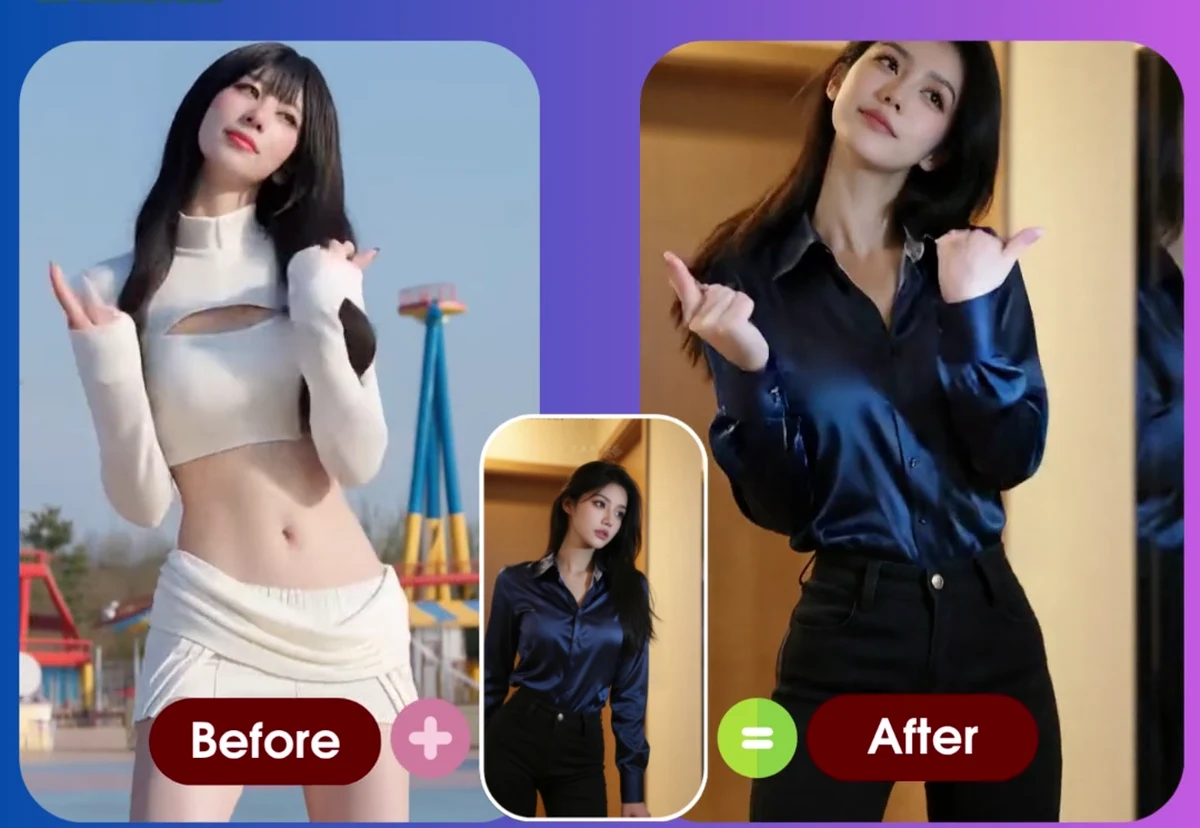
How to Recreate Any Video’s Motion with Your Own Photo (2026)
Turn a photo into a video that performs the exact motion from any reference clip. Two approaches, what inputs actually work, and the failure modes to avoid.
Animaker Dev Team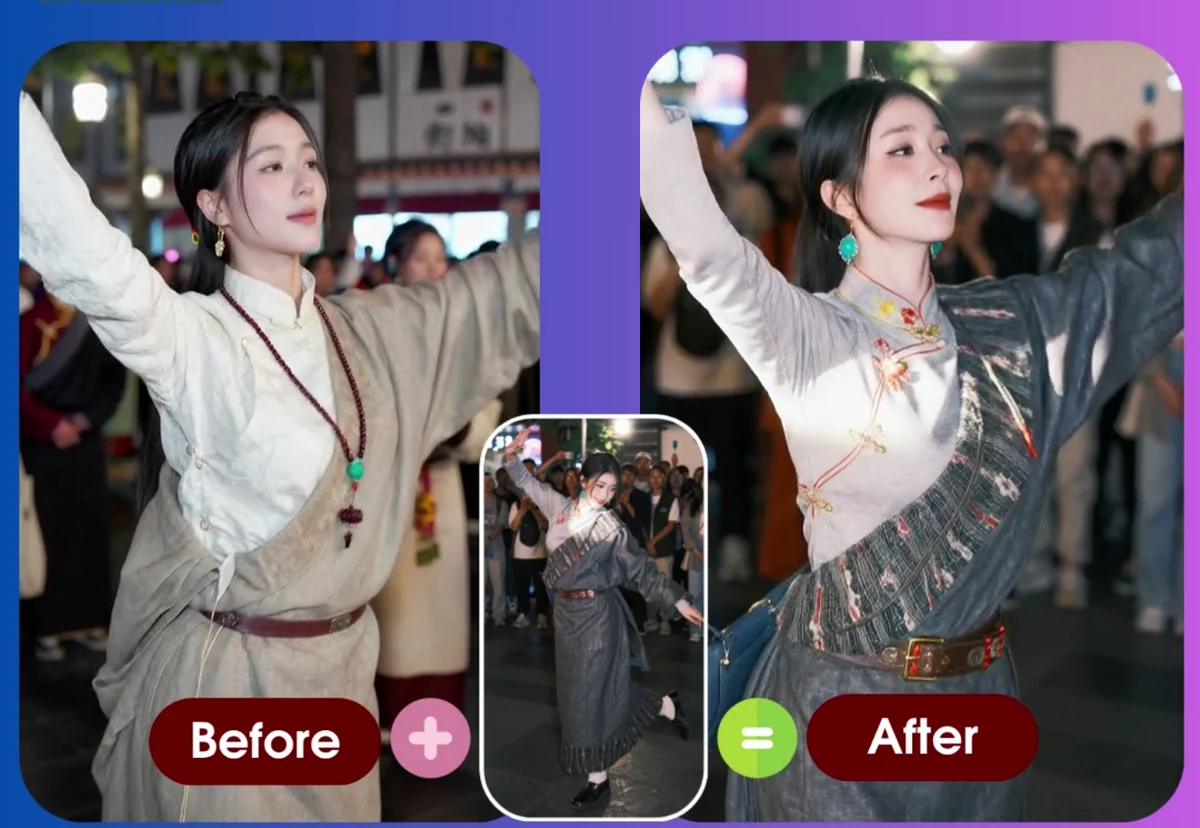
Best AI Dance Video Generators in 2026: 8 Tools Compared
A side-by-side comparison of the leading AI dance video generators — pricing model, free tier, watermark policy, reference-video support, and who each tool is actually for.
Animaker Dev Team