
Motion Transfer vs Character Replacement vs Template Libraries: Three Ways to Animate a Photo
A plain-language comparison of the three approaches to animating a photo with AI — what each one keeps, what it needs from you, and how to choose between them.
 Animaker Dev Team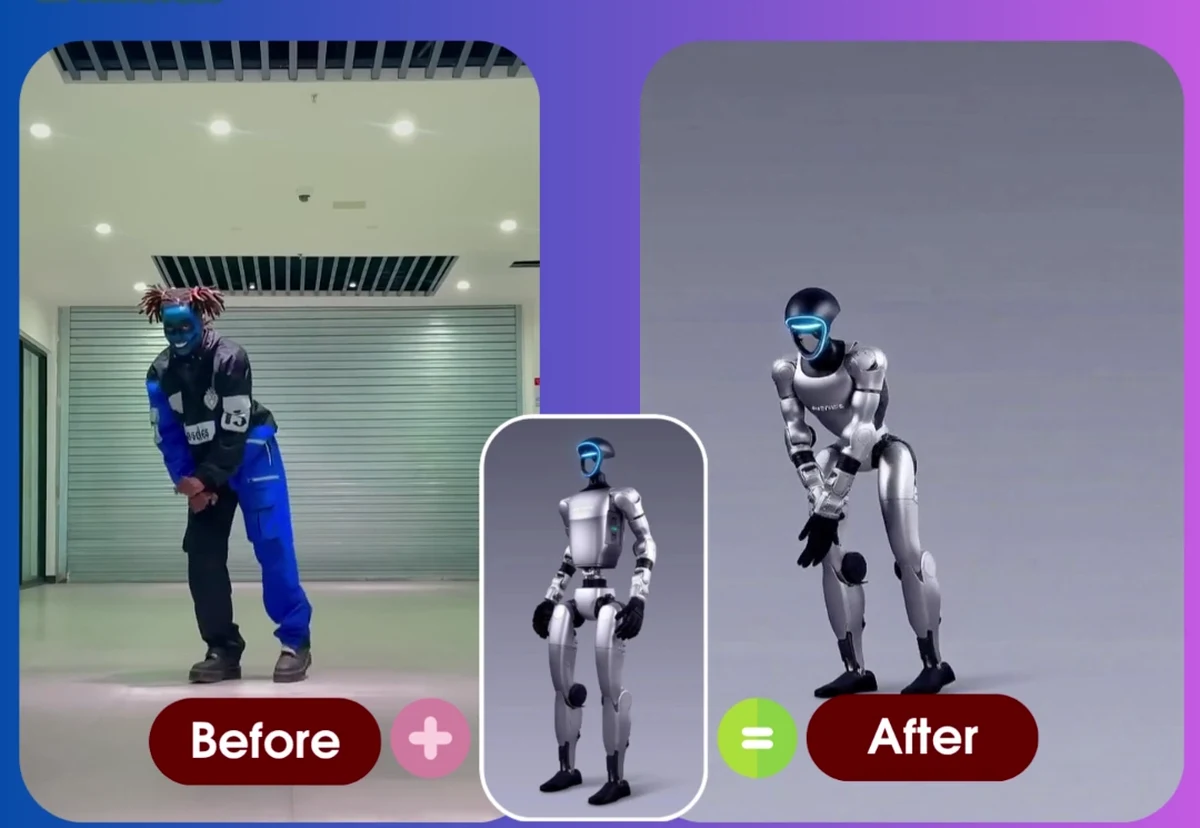
If you have a photo and you want it to move, there are three broad approaches on the market, and they are sold as if they were the same thing. They are not. They differ in one crucial respect: where the movement comes from.
- Template libraries ship the movement. You pick a dance or action from their catalogue.
- Motion transfer uses movement you supply, and applies it to your photo’s subject.
- Character replacement uses movement and scene from a clip, and puts your subject inside it.
Everything else — price, quality, limits — follows from that difference.
Side by side
| Template library | Motion transfer | Character replacement | |
|---|---|---|---|
| Movement source | Vendor’s catalogue | Your reference clip | Your reference clip |
| Scene in output | Generated or neutral | From your photo | From the reference clip |
| Identity in output | Your photo’s subject | Your photo’s subject | Your photo’s subject |
| What you must supply | One photo | One photo + one clip | One photo + one clip |
| Control over the exact motion | Low — whatever exists in the library | High | High |
| Best for | Jumping on a trend fast | Making a portrait move | Placing someone into an existing scene |
| Weakness | If the motion you want is not in the library, you are stuck | Needs a clip you have the rights to use | Scene mismatch if the photo’s framing differs from the clip’s |
The two right-hand columns are frequently bundled into a single product — Animaker offers both — while template libraries are their own category (Viggle, DancingAI, TwoShot and similar).
Template libraries
How it works. The vendor records or licenses a set of motion clips — trending TikTok dances, K-pop choreography, gestures — and you pick one. The photo supplies the subject; the library supplies everything else.
What it is good at. Zero preparation. If a trending dance is in the library, you can be finished in one click without ever finding a video of your own. For social content that follows trends, this is genuinely the fastest route.
Where it stops. By definition you can only make motions the catalogue contains. If you want your own choreography, the way your partner waves, a specific gesture from a film, or a movement you filmed yourself, a library cannot help. Libraries also tend to add watermarks on free tiers and charge monthly subscriptions rather than per video.
Motion transfer
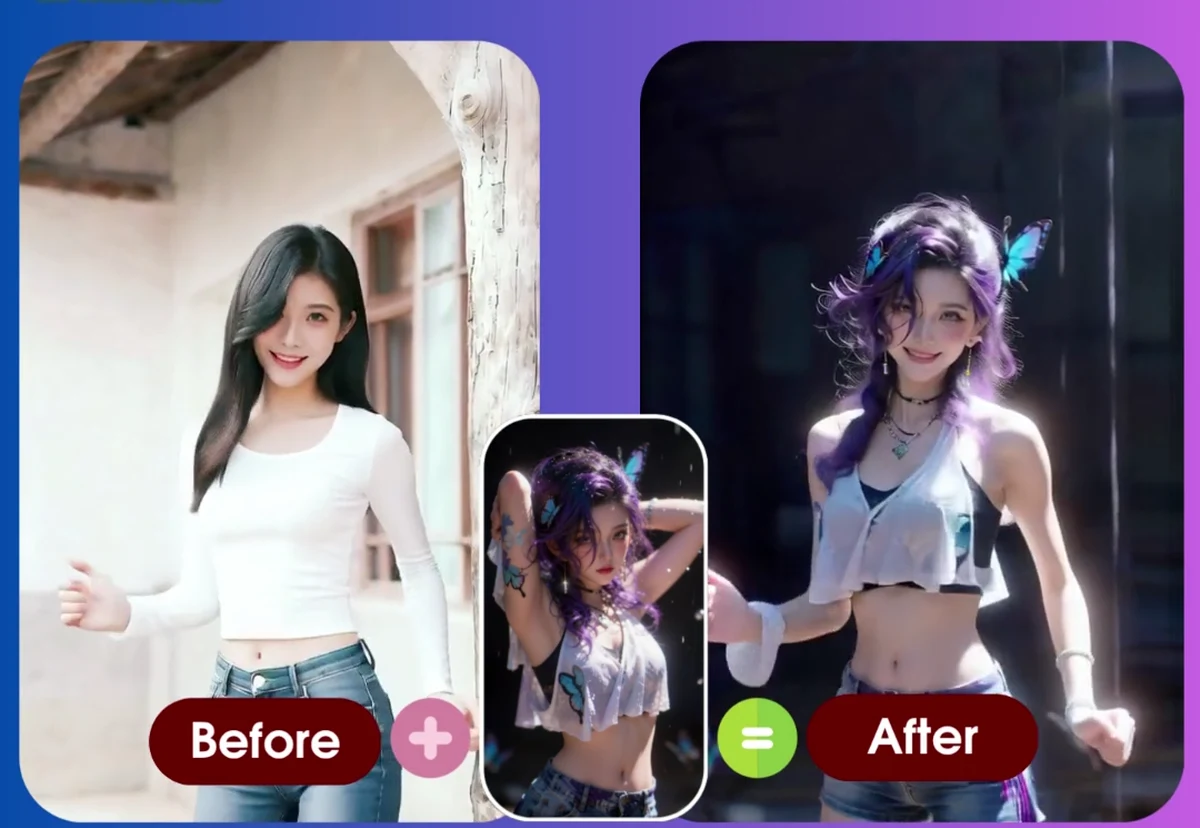
How it works. You supply a reference clip. The system extracts the body movement from it and applies that movement to the person in your photo. The result keeps your subject — face, hair, clothing — and, depending on the tool, the original background.
What it is good at. Anything where the photo is the point. A portrait that should move. A scanned photograph from decades ago that should appear to come alive. A product shot or a character that should perform a motion you have on video. Because you control the reference, you control the result precisely.
Where it stops. It needs two files and a little judgement. The reference clip has to show one person clearly with a stable camera. It is a worse fit if you have no clip in mind and simply want whatever is trending.
Character replacement
How it works. Also two files, but the roles swap: the reference clip provides the scene, the lighting, the camera and the movement, and your photo provides the person who appears inside it. Instead of making your photo move, you are placing your subject into someone else’s footage — for example, onto a stage, a street, or a setting you could not otherwise reproduce.
What it is good at. When the setting matters more than the portrait. Recreating a specific scene with a different person in it, for instance, or producing a clip in a location you have no access to.
Where it stops. Identity and scene have to be compatible. A tightly cropped head-and-shoulders portrait dropped into a wide full-body shot will look pasted in, because the model has to invent the rest of the body. Lighting differences between the two sources show up here more than in motion transfer.
Which one do you actually need?
Answer in this order:
- Do you already have a specific motion in mind? If yes → you need a reference clip, so you need motion transfer or character replacement. If no → the two left columns are irrelevant; start with a template library.
- Does the setting matter? If the output should happen somewhere specific that exists in your clip → character replacement. If the output should look like your photo, just moving → motion transfer.
- Is this a one-off or a habit? A single video is usually cheaper as pay-per-video than as a monthly subscription. At roughly $0.30–$0.50 per video, ten videos cost about $3–5 in total; the same volume on a $7.99–$15.99 monthly plan costs $96–192 over a year.
What all three need from your photo
Whatever approach you choose, these hold true:
- A visible face. Identity comes from facial landmarks. A face that is small, turned away, or covered produces weak identity retention.
- Visible limbs, for full-body motion. If the legs are cropped out of the photo, they cannot be reliably animated.
- Empty hands. Holding a phone, bag, or drink is the most common cause of distorted fingers and hands, because the model cannot separate the hand from the object.
- Enough light. Not professional lighting — just enough that features are readable.
- Reasonable framing. Match the crop of your photo to the scope of the movement: full-body motion needs a fuller photo.
FAQ
Can I mix approaches in one project?
Yes, and it is often the practical choice: use template libraries for trend-following clips, and a reference-clip workflow for anything specific. They produce compatible MP4s you can edit together.
Which approach produces the most realistic result?
Realism depends less on the approach than on the inputs. A clean reference clip and a clear, front-facing photo will beat a cleverly chosen tool with a poor source image. That is why troubleshooting guides focus on photos and clips rather than settings.
Is my reference video uploaded anywhere public?
On Animaker, uploaded photos and clips go to private storage and are used only to generate your video. Files are never published.
Do these approaches work on pets and illustrations?
They work best on a clear subject with a visible body. Photos of pets, avatars, and illustrations can animate successfully, but results are more reliable on human subjects with visible faces and limbs.
What is the difference between motion transfer and character replacement?
Motion transfer copies the movement from a reference clip onto the person in your photo, keeping the photo’s subject, clothing and background. Character replacement keeps the scene from the reference clip and puts your photo’s subject into it. The first preserves what the photo looks like; the second preserves where the video takes place.
Which is easier, templates or a reference clip?
Templates are easier to start with because the movement is already chosen for you. A reference clip gives you control over a specific motion but requires you to find or film one clip. If you just want a trending dance, a template is faster. If you need a particular movement, you need a reference clip.
Can I use a photograph that was never taken as a video?
Yes — that is the point of both motion transfer and character replacement. An old scanned portrait or a still portrait works, provided the face is clearly visible and the framing roughly matches the movement you are applying.
Try both modes
Animaker supports motion transfer and character replacement in the same workspace: upload one photo and one reference clip, pick the mode, and download the MP4. New accounts get 1 free credit, one credit produces one video, and credits start at $3.99 for 5 videos with no subscription.
Start with a photo of your own and a short clip you have the rights to use — open the creator studio.
関連記事
7 Reference Action Video Tips for Better AI Motion Transfer
Learn how to shoot or choose better reference action videos for AI motion transfer, avoid failed generations, and improve photo-to-video results.
Animaker Dev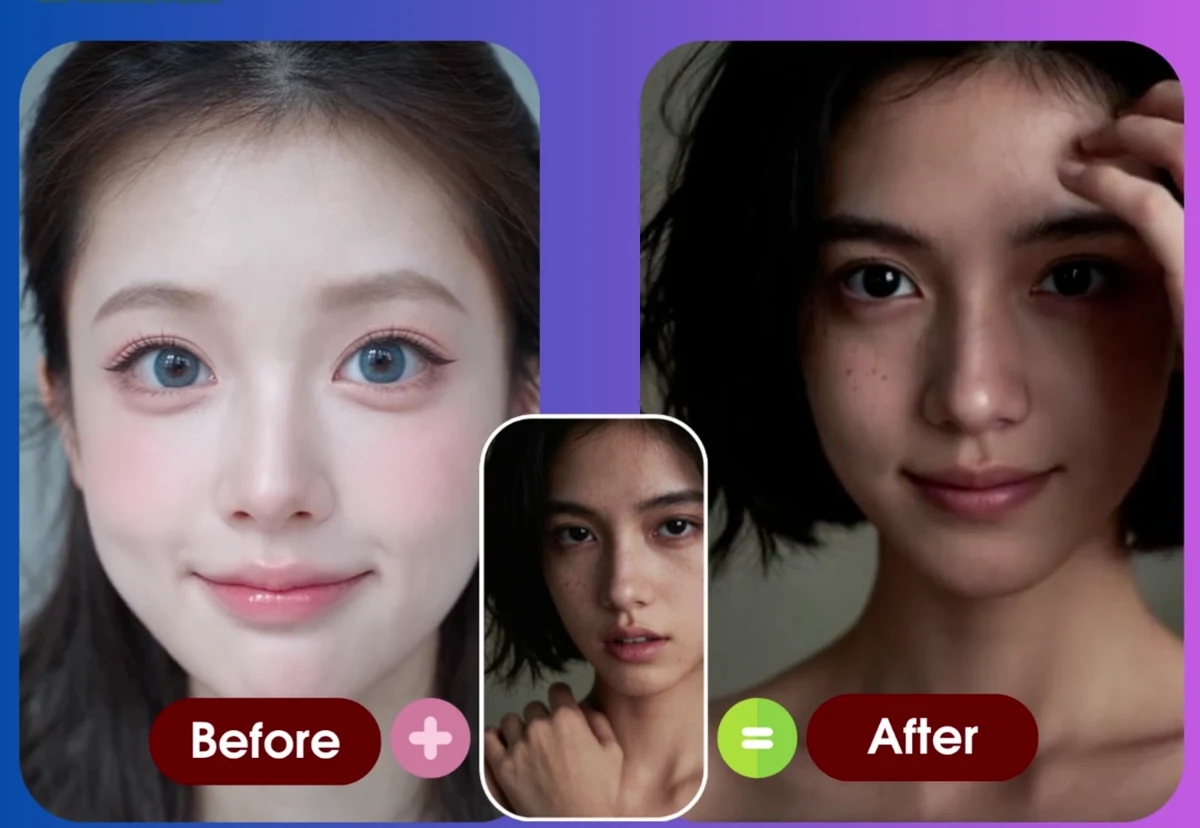
Why AI Motion-Transfer Renders Fail (1,526 Renders Analyzed)
We looked at 1,526 renders. Clip length predicted failure far better than resolution or image quality — and almost every failure was server-side, not a bad photo.
Animaker Dev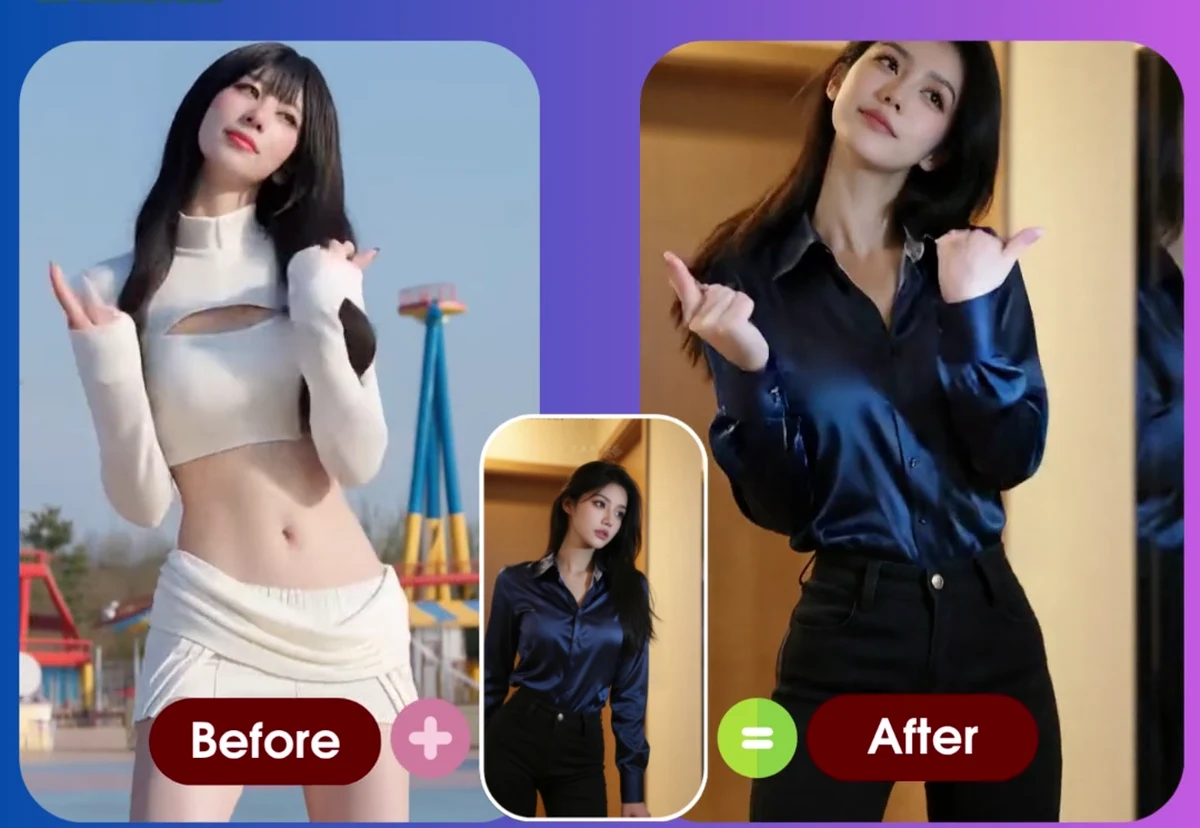
How to Recreate Any Video’s Motion with Your Own Photo (2026)
Turn a photo into a video that performs the exact motion from any reference clip. Two approaches, what inputs actually work, and the failure modes to avoid.
Animaker Dev Team